Same in Windows 2000 and 2003, Active Directory is also be able to setup in Windows Server 2008.
In Windows Server 2008, there are more features in AD, eg: RODC +++ which we will covers more in this blog.
In this session, we would like to share on setting up your first Active Directory for Windows Server 2008.
Before setting up AD, please ensure:
1) You already configured a static IP for your NIC
2) Given a meaningful name to the computer, knowing your domain name to assign
3) An available DNS server (Can be the same server as the AD)
4) ADDS role installed in that particular server to shorten the time for the installation.
Once those mentioned things done, what you need to do is just click Start-> Run -> DCPROMO
Attached the video for you guys to enjoy.
Sunday, April 6, 2008

Saturday, April 5, 2008
Setting up DC roles in Server Core
One of the new features in Windows 2008 is Server Core - the "thin" layer of Windows operating system which bring benefits of:
1) Less resource hungry
2) More secure
3) Easier to manage (Patch management+++)
Yes, it is in a command shell, but still be able to do major and cools stuff, eg:
1) Domain Controller
2) DNS
3) Hyper-V
4) File Services
5) DHCP and more.
Its definately a great deals for branch office deployment.
However, after setting up Server Core, its only a command shell. How are we going to setup a DC?
In this post, we will like to share:
First of all, we will need to configure the IP Address and put in DNS configuration:
netsh int ip show config will show you the existing configuration.
To configure static IP address on an interface:
netsh int ip set addressstatic
eg: netsh int ip set address "Local Area Connection" static 10.10.100.10 255.255.255.0 10.10.100.254 1
To configure DNS server: (let say pointing DNS to HQ DNS server)
set dnsserver "Local Area Connection" static 10.10.10.10 primary
After configure TCP/IP configuration, its the time to install AD.
Since this is Server Core, DCPROMO GUI will not prompt for you. You will need to prepare the answer file.
NOTE: Please ensure you make ness testing before the deployment. In this scenario, we are setting up additional DC (With same forest, domain with existing AD setup. This is a replica).
EG of the answer file
; dcpromo.exe /unattend:C:\AdditionalDC.txt
; You may need to fill in password fields prior to using the unattend file.
; If you leave the values for "Password"
; as "*", then you will be asked for credentials
[DCInstall]
ReplicaDomainDNSName=MyDomain.local
SiteName=Default-First-Site-Name
InstallDNS=No
ConfirmGc=Yes
CreateDNSDelegation=No
UserDomain=MyDomain.local
UserName=MyDomain\administrator
Password=*
DatabasePath="C:\Windows\NTDS"
LogPath="C:\Windows\NTDS"
SYSVOLPath="C:\Windows\SYSVOL"
SafeModeAdminPassword=MyP@ss123
; Run-time flags (optional)
; CriticalReplicationOnly=Yes
; RebootOnCompletion=Yes
Copy After theand before the . Save it into a file, eg: MyUnattend.txt in to the ServerCore C:\
Then you will need to run the following command to setup the additional DC replica in Server Core:
c:\dcpromo /unattend:MyUnattend.txt
You will then see the results. Happy DCing.
1) Less resource hungry
2) More secure
3) Easier to manage (Patch management+++)
Yes, it is in a command shell, but still be able to do major and cools stuff, eg:
1) Domain Controller
2) DNS
3) Hyper-V
4) File Services
5) DHCP and more.
Its definately a great deals for branch office deployment.
However, after setting up Server Core, its only a command shell. How are we going to setup a DC?
In this post, we will like to share:
First of all, we will need to configure the IP Address and put in DNS configuration:
netsh int ip show config will show you the existing configuration.
To configure static IP address on an interface:
netsh int ip set address
eg: netsh int ip set address "Local Area Connection" static 10.10.100.10 255.255.255.0 10.10.100.254 1
To configure DNS server: (let say pointing DNS to HQ DNS server)
set dnsserver "Local Area Connection" static 10.10.10.10 primary
After configure TCP/IP configuration, its the time to install AD.
Since this is Server Core, DCPROMO GUI will not prompt for you. You will need to prepare the answer file.
NOTE: Please ensure you make ness testing before the deployment. In this scenario, we are setting up additional DC (With same forest, domain with existing AD setup. This is a replica).
EG of the answer file
; You may need to fill in password fields prior to using the unattend file.
; If you leave the values for "Password"
; as "*", then you will be asked for credentials
[DCInstall]
ReplicaDomainDNSName=MyDomain.local
SiteName=Default-First-Site-Name
InstallDNS=No
ConfirmGc=Yes
CreateDNSDelegation=No
UserDomain=MyDomain.local
UserName=MyDomain\administrator
Password=*
DatabasePath="C:\Windows\NTDS"
LogPath="C:\Windows\NTDS"
SYSVOLPath="C:\Windows\SYSVOL"
SafeModeAdminPassword=MyP@ss123
; Run-time flags (optional)
; CriticalReplicationOnly=Yes
; RebootOnCompletion=Yes
Copy After the
Then you will need to run the following command to setup the additional DC replica in Server Core:
c:\dcpromo /unattend:MyUnattend.txt
You will then see the results. Happy DCing.
Windows 2008 launch in Malaysia
Guys,
Something to share with you - 8th April will be the launch of Windows 2008 in Malaysia.
We will participate, together with Exchange Team in Malaysia. We will run few demos on Windows 2008 Hyper-V, Exchange 2007 on Win2K8 ++.
See you there. More info? Please visit http://www.heroes.com.my/
Attached the launch Video for your first view- Heros in Malaysia...
Something to share with you - 8th April will be the launch of Windows 2008 in Malaysia.
We will participate, together with Exchange Team in Malaysia. We will run few demos on Windows 2008 Hyper-V, Exchange 2007 on Win2K8 ++.
See you there. More info? Please visit http://www.heroes.com.my/
Attached the launch Video for your first view- Heros in Malaysia...
Thursday, March 27, 2008
Disable Windows 2008 Server Core Firewall
WOnder how to disable firewall in Windows 2008 server core? Sometimes, it might give you lots of minor problems.
In testlab, I will normally turn it off.
To turn it off:
netsh firewall set opmode disable
It is just a short command...
In testlab, I will normally turn it off.
To turn it off:
netsh firewall set opmode disable
It is just a short command...
Thursday, December 13, 2007
Windows 2008 Termimnal Services Web - RC0
One of the hot topic about Windows 2008 is the terminal services Web.
Tested in the RDP, it rocks. However, one thing we found out for RC0, which is not in Beta bits: it will need Windows XP SP3 and above, Vista SP1 and above to run. Personal thinking, it is not good as lots and lots of machines out there not be able to use this cool feature.
Hope MSFT will allow RDP ver 6.1 for download, instead of WinXP SP3 and Vista SP1.
Want to know more?
http://blogs.msdn.com/ts/archive/2007/10/17/client-requirements-for-ts-web-access-in-windows-server-2008-release-candidate-rc0.aspx
Tested in the RDP, it rocks. However, one thing we found out for RC0, which is not in Beta bits: it will need Windows XP SP3 and above, Vista SP1 and above to run. Personal thinking, it is not good as lots and lots of machines out there not be able to use this cool feature.
Hope MSFT will allow RDP ver 6.1 for download, instead of WinXP SP3 and Vista SP1.
Want to know more?
http://blogs.msdn.com/ts/archive/2007/10/17/client-requirements-for-ts-web-access-in-windows-server-2008-release-candidate-rc0.aspx
Sunday, November 25, 2007
Windows 2008 Virtualization - in RC0
Guys,
Long time have not update this blog. Recently, participating a Early Adoptor of Windows 2008, code name Longhorn. One of the customer is eager to look into Virtualization, cool!
However, something that we found that would like to share it our here. As for now, only Windows 2008 RC0 that support virtualization, not other versions.
You also would be good to know:
- Not all the hardware is supported by W2008 V. There are lists of the hardware manufacturer in Microsoft website, so, do check it out before rolling out.
- W2008 Ent 32/64 bit support V.
- Only support 8 logical processor
- Max 64GB Ram
- Do not support more than 1 virtual SCSI controller (Means do not support cluster within V)
- Windows6.0-KB939854-x64.msu and Windows6.0-KB939853-x64.msu must be install to allow V to be in Server Management
- You cant install AD in the host OS
- You cant run VPC, VS in the physical machine together with Hypervisor
- Hypervisor do not support dynamic disk...beware or you will need to reinstall your OS
Lastly, when we try this out, our machine has multiple IPs, which results we can't log in using VMC. You can only have one primary IP, everything will then work fine.
Lots of things huh? Hope this will change in the near future :)
Long time have not update this blog. Recently, participating a Early Adoptor of Windows 2008, code name Longhorn. One of the customer is eager to look into Virtualization, cool!
However, something that we found that would like to share it our here. As for now, only Windows 2008 RC0 that support virtualization, not other versions.
You also would be good to know:
- Not all the hardware is supported by W2008 V. There are lists of the hardware manufacturer in Microsoft website, so, do check it out before rolling out.
- W2008 Ent 32/64 bit support V.
- Only support 8 logical processor
- Max 64GB Ram
- Do not support more than 1 virtual SCSI controller (Means do not support cluster within V)
- Windows6.0-KB939854-x64.msu and Windows6.0-KB939853-x64.msu must be install to allow V to be in Server Management
- You cant install AD in the host OS
- You cant run VPC, VS in the physical machine together with Hypervisor
- Hypervisor do not support dynamic disk...beware or you will need to reinstall your OS
Lastly, when we try this out, our machine has multiple IPs, which results we can't log in using VMC. You can only have one primary IP, everything will then work fine.
Lots of things huh? Hope this will change in the near future :)
Friday, October 26, 2007
Removing Domain Services in Windows 2008
To remove Windows 2008 ADS, basically, the concept is still the same, ensure that this is not a certificate authority, GC. Perform a backupu before you are doing so. However, if you are running this on a lab and would like to wipe it off, just click Run, dcpromo. Its the same command in Windows 2003.
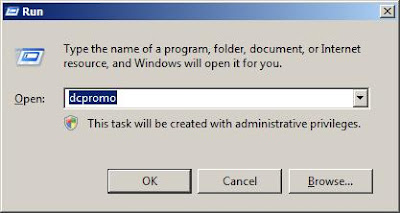 W2K8 will then check on if you have ADS installed.
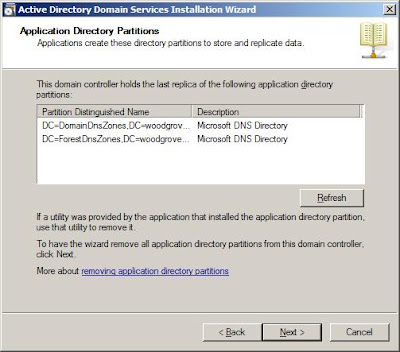
Select "Delete all application directory..." if you want to delete the application partition, click Next.
 W2K8 will then check on if you have ADS installed.
Once detected, the ADDS installation Wizard will then start.

When you click next, and if this is the GC, it will then prompt for your attention.

If this is the last DC like mine, click on "Delete the domain because the Server...", Click Next.


Select "Delete all application directory..." if you want to delete the application partition, click Next.
 Key in the passowrd for the administrator when the machine boot up.

Review the summary, click Next. One thing good about Windows 2008,you will be able to export the steps configured to a file, which you can use in the future, with the same configuration setup.
 After click Next, check on reboot if the instalaltion wizard is done or just leave it if you would like to restart manually.

Thats it.
Subscribe to:
Comments (Atom)


